
Fortnite’s fast building and tight gunplay demand consistency. On Steam Deck, that consistency depends on how well you balance the APU’s thermal budget against the game’s rendering load. Unlike desktop PCs, the Deck cannot simply draw more wattage to brute-force frame drops; its battery and cooling solution hard-stop at a finite power envelope. Whether you have loaded Windows onto internal storage or you are streaming from another device, the configuration choices you make directly determine whether an endgame build fight feels responsive or like a slideshow.
This guide walks through the safe, high-impact settings that protect your frame rate without requiring unsafe voltage tweaks or unsupported file edits. You will find exact resolution targets, TDP ranges that match each performance tier, and guidance on when FSR helps versus when it hurts visibility.
Steam Deck Status: Deck Verified, ProtonDB, and Anti-Cheat Realities
Fortnite’s relationship with Steam Deck is complicated by its kernel-level anti-cheat requirements. Epic Games has not enabled Proton compatibility for its anti-cheat middleware, which means the native SteamOS experience stops at the title screen. Valve’s compatibility database lists the game as Unsupported, and community reports on ProtonDB reflect startup or matchmaking failures under standard Proton versions. This is an architectural limitation that persists across major patches.
For players committed to local hardware play, the practical path is a secondary Windows installation on the Deck’s SSD or a microSD card. Once inside Windows, the Steam Deck behaves like any other compact PC, and the settings below apply directly. If you prefer to stay on SteamOS, Xbox Cloud Gaming and GeForce NOW offer legitimate alternatives, though they depend on network quality rather than silicon tuning.
Recommended Resolution and Display Setup
The Steam Deck’s internal panel runs at 1280×800 in a 16:10 aspect ratio. For competitive integrity, native resolution is the safest starting point because it maps one-to-one with the screen and avoids scaling blur that can hide distant movement.
- Resolution: 1280×800 (native), or 1152×720 if you need extra headroom on a tight TDP budget.
- 3D Resolution / Render Scale: 100% for clarity. Drop to 80-90% only if you cannot hold your target frame rate at native.
- VSync: Off. VSync adds latency on mobile APUs; use the in-game frame rate limiter instead.
- Motion Blur: Off. Essential for tracking targets during fast builds and edits.
Graphics Preset for Competitive Play
Fortnite offers a traditional rendering path and a Performance Mode that strips visual fidelity in favor of frame rate. On Steam Deck, Performance Mode is generally the better choice for competitive integrity because the simplified renderer eases load on the APU.
- Rendering Mode: Performance Mode (low meshes, reduced particles).
- View Distance: Far or Epic. Seeing terrain, builds, and gliders early is a direct competitive advantage.
- Shadows: Off. Shadows consume GPU time and obscure enemy silhouettes.
- Anti-Aliasing: Off or Low. Native resolution on a seven-inch screen provides enough pixel density to reduce jaggies without the smear of heavy post-process AA.
- Textures: Medium. The Deck’s shared VRAM can handle Medium without stutter; Low looks too noisy for long-range identification.
- Effects: Low. Reduces muzzle flash and explosion clutter.
- Post Processing: Low. Keeps contrast sharp and prevents haze during storm phases.
If you prefer the traditional rendering path for visual events or content creation, use the Low preset with View Distance raised manually. Expect a heavier battery draw and more frequent frame dips during large endgame zones.

FSR and Upscaling Settings
Fortnite’s internal FSR toggle renders the 3D scene at a lower resolution and reconstructs it with edge sharpening. On a 1280×800 display, that reconstruction can introduce flicker on thin geometry like distant build edges or wire fences. Competitive players generally dislike this artifact because it creates false motion cues. Treat FSR as an emergency tool rather than a default.
- FSR 1 / FSR 2: Set to Performance only if you are struggling to maintain 60 FPS in traditional rendering.
- FSR Quality / Balanced: A safer compromise if you want slightly better battery life without obvious softness.
- Temporal Super Resolution (TSR): If available in your build, TSR at low settings can be sharper than FSR 1 on distant geometry.
On Windows-based Deck setups, you can also force AMD Radeon Super Resolution at the driver level. This works well for sub-native resolutions but introduces minor UI shimmer. For pure competitive play, stick to native resolution with in-game Performance Mode before relying on upscaling.
Target FPS and Frame Cap
The Steam Deck LCD panel refreshes at 60 Hz, while the OLED model supports up to 90 Hz. Even on OLED, Fortnite’s APU-bound nature makes a 60 FPS cap the most stable choice for battery play; pushing toward 90 FPS often demands TDP levels that cut session time below ninety minutes.
- Target: 60 FPS locked.
- In-Game Cap: Set to 60 FPS. Do not leave it Unlimited on battery.
- External Monitor: If docked to a 120 Hz or 144 Hz display, you can raise the cap, but uncapped rendering on the internal panel provides no benefit.
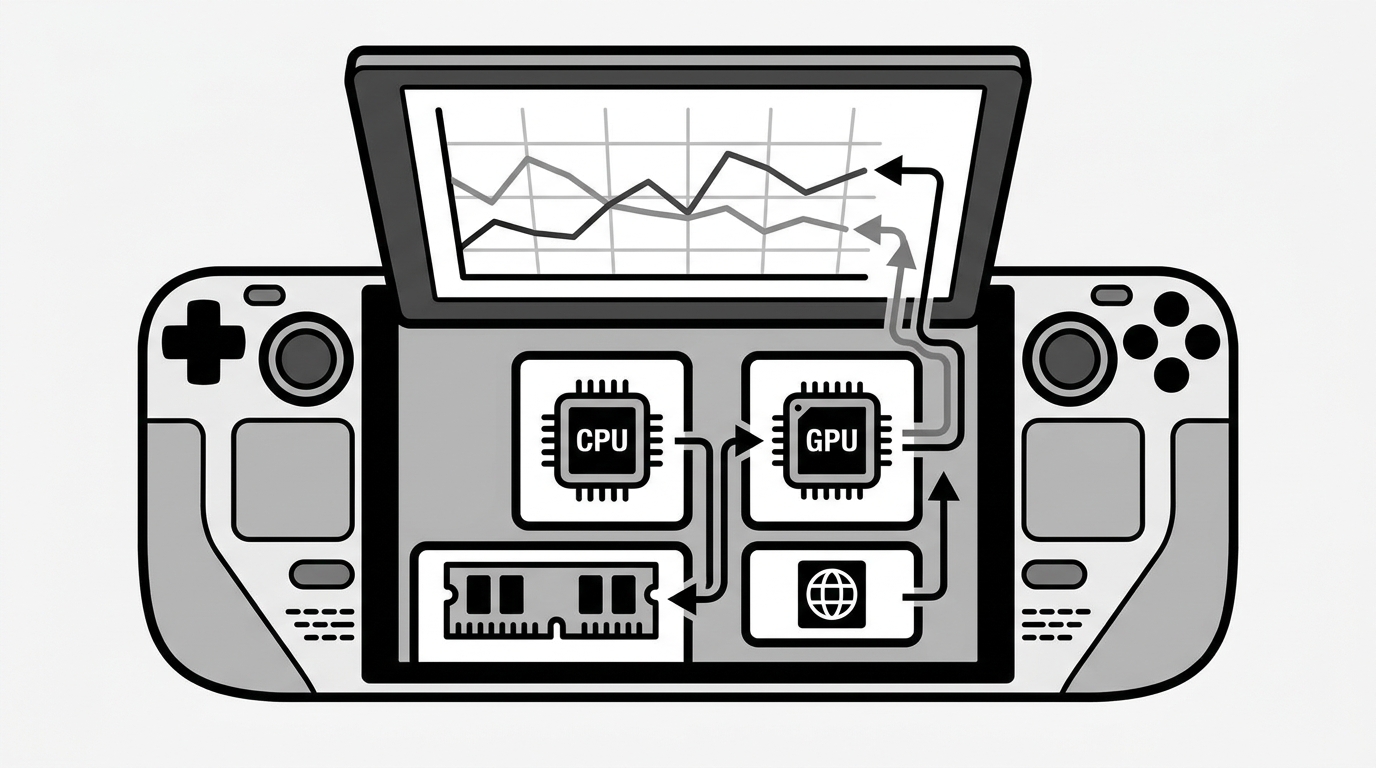
A hard 60 FPS cap smooths out frame pacing and prevents the APU from spiking into inefficient wattage zones. If your TDP is tuned correctly, the frame graph should stay flat even during intensive build battles.
TDP Wattage by Performance Profile
The Steam Deck’s APU scales non-linearly with power. Competitive players need sustained clocks, not burst peaks that throttle after two minutes of rendering.
- 15W TDP (Max): Holds 60 FPS in nearly all scenarios, including traditional Low presets. Battery life lands around 1.5 to 2 hours. Best for short, serious sessions near a charger.
- 10-12W TDP (Balanced): The sweet spot for portable competitive play. Performance Mode typically holds 60 FPS; traditional Low may dip to 50-55 FPS in heavy endgame. Expect roughly 2.5 to 3 hours of battery.
- 7–8W TDP (Eco): Extends battery toward 3.5 to 4 hours, but frame rates drop to the 30–45 FPS range. Viable for casual Zone Wars or creative warm-ups, not for Battle Royale tournaments.
Adjust TDP through the Quick Access Menu on SteamOS, or via Windows power management tools if running an alternative OS. Monitor your frame-time graph after each change; if 1% lows are spiking, raise TDP by 2W until the line flattens.
Battery Life Expectations
Local Fortnite rendering is demanding. These estimates assume a healthy battery cycle, 50% screen brightness, and active wireless play.
- 15W + Performance Mode + 60 FPS: 1.5–2 hours
- 10W + Performance Mode + 60 FPS: 2.5–3 hours
- 8W + Performance Mode + 30 FPS cap: 3.5–4 hours
- Cloud Streaming (Xbox / GeForce NOW): 4–5 hours because the APU is largely idle
Cloud streaming sidesteps the anti-cheat barrier and extends battery life significantly, though it introduces network-dependent input latency. For stable 5 GHz Wi-Fi environments, streaming is a practical alternative to local Windows installation.
Quick Competitive Checklist
- Set render scale to 100% at 1280×800 native.
- Enable Performance Mode; raise View Distance manually.
- Turn off Shadows, Motion Blur, and VSync.
- Cap FPS to 60 to match the optimal portable power curve.
- Start at 10W TDP and test a full match; raise to 12W if endgame drops occur.
- Only enable FSR if you are below 60 FPS at native resolution.
- Use Gyro or touch menus for fine aiming adjustments.
Frequently Asked Questions
Can I play Fortnite on SteamOS without Windows?
Currently, no. Anti-cheat barriers prevent Fortnite from launching under Proton. ProtonDB and Steam’s compatibility listings both reflect this status. Cloud streaming remains the native SteamOS workaround.
Is Performance Mode better than Low settings?
For the Steam Deck APU, yes. Performance Mode uses a simplified renderer that is easier to sustain at 60 FPS and produces less heat than the traditional Low preset at the same wattage.
Should I use FSR if I am already hitting 60 FPS?
No. Adding FSR to an already stable 60 FPS scene only softens edges. Disable it and enjoy sharper iron sights and cleaner build grids.
Does the Steam Deck OLED change these recommendations?
The OLED model has a more efficient panel and supports up to 90 Hz, but the APU and thermal limits are similar. You may gain roughly 20–30 minutes at the same TDP, yet the optimal graphics settings remain identical.
Final Thoughts
Getting Fortnite to feel crisp on Steam Deck is less about maxing sliders and more about respecting the hardware’s power curve. Lock your frame rate, favor Performance Mode, and keep TDP in the 10–12W range for a steady portable experience. The result is fewer mid-match stutters, more predictable aim, and a battery that lasts long enough to close out a Victory Royale.